
📍 Managing Locations
Locations are the physical or logical places your team operates from — stores, warehouses, regions, offices, and more. 📍 Once set up, locations are used to target content, build audiences, and organize your entire workforce structure.
In questo articolo:
🔍 Finding, Filtering and Viewing Locations
📍 What Are Locations?
A Location is any named place in your platform — a store, a warehouse, a regional office, a country, or even a virtual team. Each location belongs to an Organization, can be assigned Location Categories and Content Categories, and can be nested under a Parent location to reflect your real-world hierarchy.
The Locations list lives under Platform Settings → Locations and shows these columns:
- 📛 Name — the location's display name
- 🏷️ Type — a colour-coded badge (Store, Region, Warehouse, Country, etc.)
- 🗂️ Location Categories — any categories assigned to this location
- 🏢 Organization — which organization owns it
- 🏙️ City — the city from the location's address
➕ Creating a Location
Click the + Create button in the top-right corner and select Location. The creation flow has two steps.
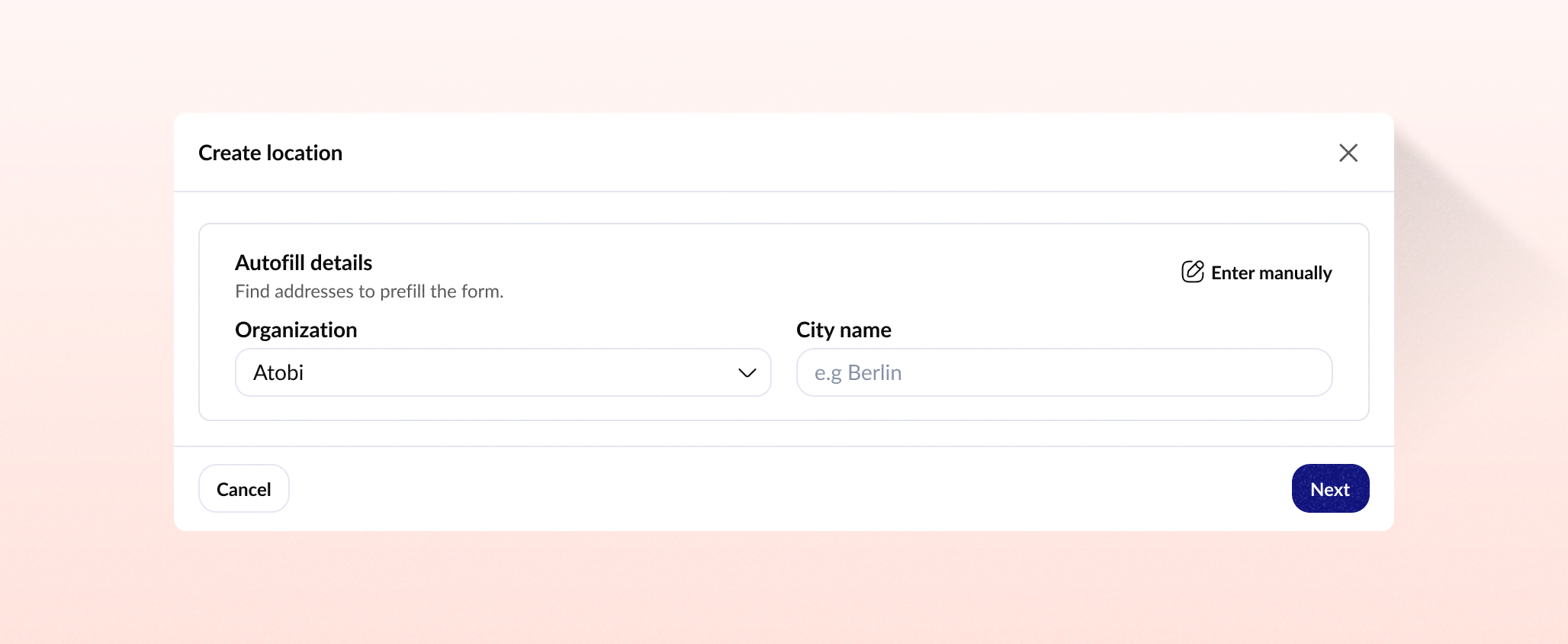
Step 1 — Address lookup
The first screen lets you autofill the location's address details by selecting an Organization and typing a City name, then clicking Next to search for matching store addresses. If you'd rather fill in everything yourself, click Enter manually in the top-right of the dialog to skip straight to the form.
💡 Tip: Use Autofill when the location has a real street address — it pre-populates the address fields and pins the location on the map for you.
Step 2 — Location details
Fill in the fields in the Create location form:
- Name (required) — the display name for the location.
- Location type — classifies the location. Available types are: Store, Warehouse, Region, Country, Area, Flagship Store, Factory Outlet, Regional Office, Urban Store, and Headquarters.
- Location Categories — assign one or more location categories to group this location for filtering and audience targeting.
- Content Categories — link content categories so the right content is automatically associated with this location.
- Country — select the country this location is in.
- Organization — link the location to one of your organizations.
- Address — search for a street address, or click Pick on map to pin the exact coordinates manually.
- Parent location — optionally nest this location under another (e.g. a store under a region).
- External id — optional ID for mapping to a record in an external system.
Click Create location to save.
Why can't I see a location I just created?
If you created a location but can't find it in your list, it's likely because it falls outside your permission scope. Some roles have local access, meaning you can only see locations within your assigned responsible area. The location was created successfully — you just don't have visibility into it.
If you have local permissions, then you won't be able to see:
- locations without an address
- locations with an address in another area, and you have access to
Only System Owners or members with global access can view and manage locations outside your scope. Reach out to your System Owner if you need help with it.
✏️ Editing a Location
To update an existing location:
- Find the location in the list and click its ⋮ menu on the right.
- Select Edit.
- The Edit location dialog opens with a map preview at the top showing the current pin, followed by all editable fields: Name, Location type, Organization, Location Categories, Content Categories, and External id.
- Make your changes and click Save.
💡 Tip: Use View from the ⋮ menu if you just want to inspect a location's details without accidentally changing anything.
🔍 Finding, Filtering and Viewing Locations
The Locations tab gives you several tools to navigate large location lists.
Ricerca
Use the Search bar to find locations by name.
Filter
Click Filter to narrow the list by one or more criteria:
- 🗂️ Location Category — show only locations with a specific category
- 📁 Content Category — filter by associated content category
- 🏢 Organization — show locations belonging to a specific organization
- 🗺️ District — filter by district
- 🌍 Country — filter by country
- 🏗️ Divisions — filter by administrative division
Display modes
Click Display to change how the list is presented:
- 📋 Table — the default grid view
- 🗺️ Map — see all geolocated locations plotted on an interactive map
- 📊 Graph — visualise location relationships
You can also change how rows are grouped:
- None — flat list (default)
- Addresses — group locations by their address
- Hierarchy — show parent–child relationships using the Parent location field
💡 Tip: Switch to Map view to quickly spot locations that are missing coordinates — they won't appear as pins on the map.
🗑️ Deleting a Location
To remove a location:
- Click the ⋮ menu on the location's row.
- Select Delete.
- Confirm the deletion in the prompt that appears.
⚠️ Important: Deleting a location removes it from any audiences, content assignments, and member responsibilities it was part of. This action cannot be undone — make sure you've reassigned any critical data before proceeding.
🧩 What Can You Do Here?
- 📍 Create locations with autofill address lookup or manual entry
- 🏷️ Classify locations by type — Store, Warehouse, Region, Country, and more
- 🗂️ Assign Location and Content Categories for targeting and filtering
- 🏢 Link locations to organizations to reflect your business structure
- 🌳 Build location hierarchies using the Parent location field
- 📌 Pin locations on a map with address search or manual coordinate picking
- 🔗 Map to external systems via the External id field
- 🗺️ View locations as a table, map, or graph and group by address or hierarchy
- 🔍 Search and filter by category, organization, district, country, or division
- ✏️ Edit any location's details at any time
- 🗑️ Delete locations that are no longer needed