
📩 Import and Update Members with Excel
Simplify your team management by bulk uploading and updating members all at once using an Excel file — saving you time and effort 🚀
In questo articolo:
🔍 Reviewing and Applying Changes
📧 Important Note on Invitations
📍 Where to Find It
You can find Members Import on the Members page in Web App.
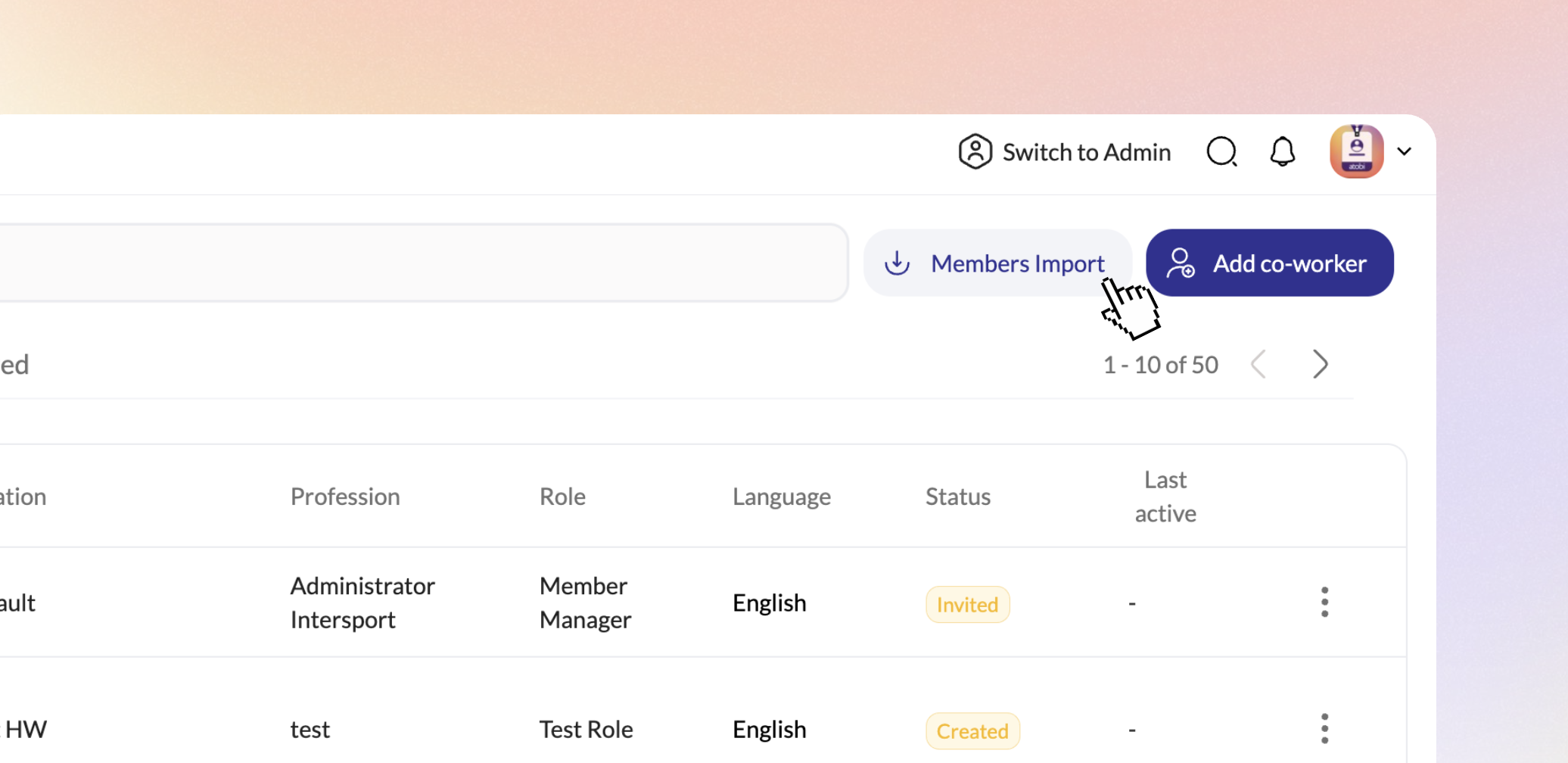
🔒 Important: This feature is only visible to users with Global Admin rights, who have access to all members and locations.
📊 Preparing Your Excel File
To get started, make sure your member file is in Excel format (.xlsx) and includes these required columns:
- first name
- last name
- email / username
You can also include optional columns:
- location
- profession
- language
- external user ID
- temporary password
If you don’t have data for the optional columns, no worries - you can update those in the next step manually.
⬆️ Uploading Data
- Click Members Import on the Members page.
- Select your prepared Excel file and upload it.
- The system will then ask you to map the columns from your file to the correct fields in Atobi (e.g., mapping your “name” column to the First Name field). This ensures that each piece of information is imported into the right place.
- If the system detects errors (such as missing or misspelled column headers), it will show clear error messages so you can fix and re-upload the file.
- If some information (profession, location, or language) is missing for members, you’ll see an Action Required prompt next. You can either:
- Set a default value that will be applied to all members missing that field, or
- Choose to Skip and manually update those fields per member in the next step.
🔍 Reviewing and Applying Changes
Once the file is accepted, you’ll see the full list of members, with separate tabs for:
- Modified: Existing members with updated info (click the info icon under Status to see what changes were uploaded)
- Needs Fixes: Members with missing info (click the info icon under Status to see details)
- New: Members not found in the system who will be added as new
You can review each tab and upload changes selectively or all at once.
📌 Note: When reviewing the members, you can close the Members module or close the platform tab at any time — your progress will be saved and you can return to finish the import whenever you want. Just be sure not to log out of the platform, as that will cause your progress to be lost.
✅ Finalizing the Import
- You can select or deselect members individually or by tab — only the selected members will be uploaded. You can then come back later to upload or edit the remaining members.
- When ready, click Continue to confirmation.
- Before the import starts, you’ll see an overview of all upcoming changes. Here you can:
- Review members who will be created or updated.
- See members currently in the system but not included in your file.
- For these members, you can choose to take no action or archive them.
- You can search within the list and select specific members to archive if needed.
- When everything looks correct, click Confirm & Import.
⚠️ Important: Once the import begins, keep the Members page open until the process is finished. Closing the tab or navigating away during the upload will interrupt the import.
📧 Important Note on Invitations
Currently, new members created via this import will not receive an automatic invite email to join the platform. You will need to:
- or Assign a temporary password to each member from their profile and notify them separately. More on that here.
💡Future updates will include being able to send invitations automatically as part of this process.